
How to import indicators into NinjaTrader is one of the first steps traders need to master when customizing their platform.
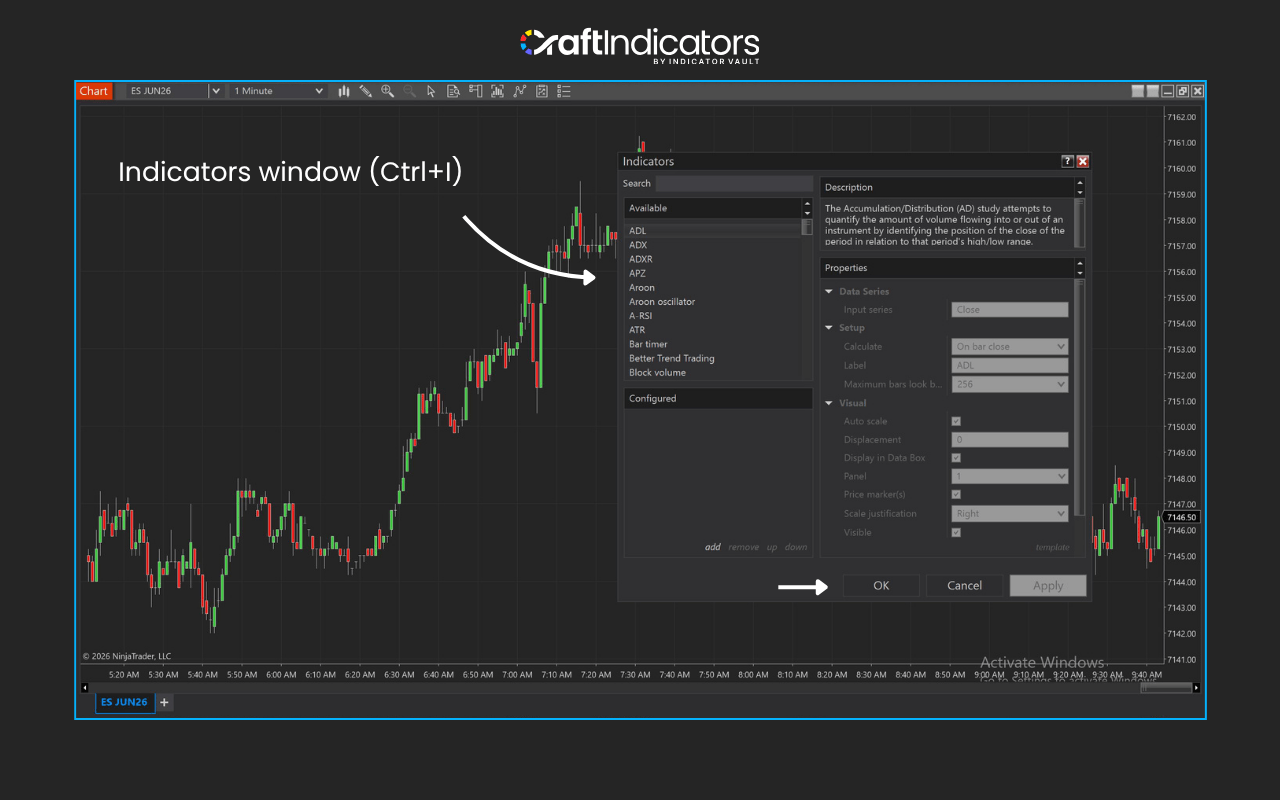
To add, install, or import indicators in NinjaTrader 8, you can use the Control Center by selecting Tools → Import → NinjaScript Add‑On and uploading the indicator ZIP file directly. Alternatively, open the Indicators window (Ctrl+I) on any chart to apply built‑in tools. This built‑in import flow ensures compatibility and reduces errors compared to manual extraction. For custom indicators or third‑party add‑ons, the NinjaScript Editor (New → NinjaScript Editor) allows coding in C# and compiling scripts (F5) to activate them.
Once installed, indicators can be applied to charts for technical analysis, personalized through adjustable parameters, and saved as templates for reuse across different trading setups.
How to Add Built‑In Indicators to a Chart
NinjaTrader comes with over 100 pre-built technical indicators, which can be added, removed and edited via the Indicators window. Those existing indicators are ready to use.
- Open the Indicators window (Ctrl+I) or right‑click on a chart.
- Move indicators from the “Available” list to the “Configured” list.
- Change settings like period, colors, or alerts.
- Click OK or Apply to add them to your chart.
How to Import Custom Indicators (.zip NinjaScript Add‑Ons)
Custom indicators are third‑party tools packaged as NinjaScript Add‑Ons. They are user‑defined technical analysis tools built to spot market patterns, trends, or signals beyond default studies.
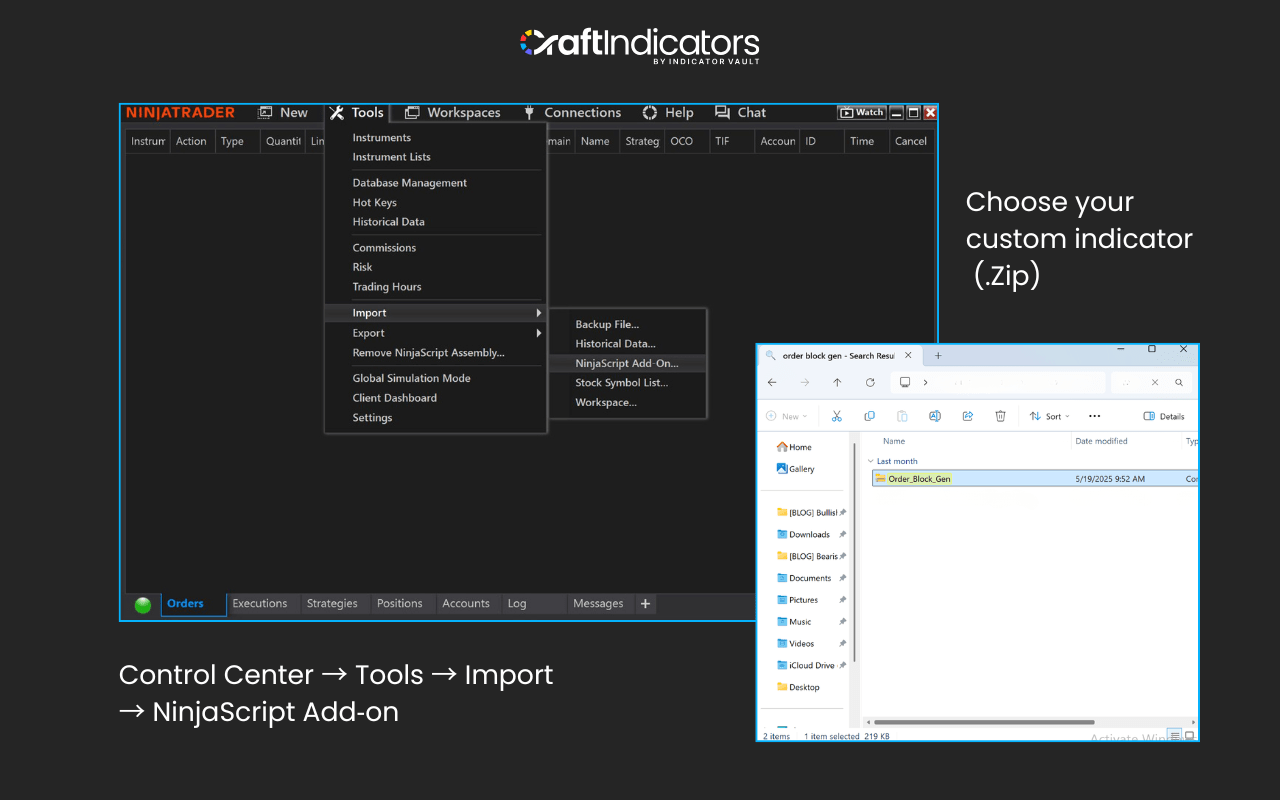
- Go to Control Center → Tools → Import → NinjaScript Add‑On.
- Select the downloaded .zip file.
- Restart NinjaTrader if asked.
- Always use trusted sources to avoid errors or unsafe files.
 Traders can adjust parameters, algorithms, and visual styles of custom indicators to match their strategies. They are often coded in languages like C#, MQL4/5, or Python.
How to Create Your Own Custom Indicator in NinjaScript Editor
For traders who are typically experienced, technical, or systematic ones, building a custom indicator in NinjaTrader 8 can be a powerful way to tailor analysis to specific strategies. The NinjaScript Editor provides a coding environment in C# where you can design indicators from scratch, define properties such as parameters and plots, and add logic that fits your trading style.
- Open Control Center → New → NinjaScript Editor.
- Right‑click the Indicators folder → choose New Indicator.
- Define properties like name, parameters, plots, and inputs.
- Press F5 to compile and make the indicator available.
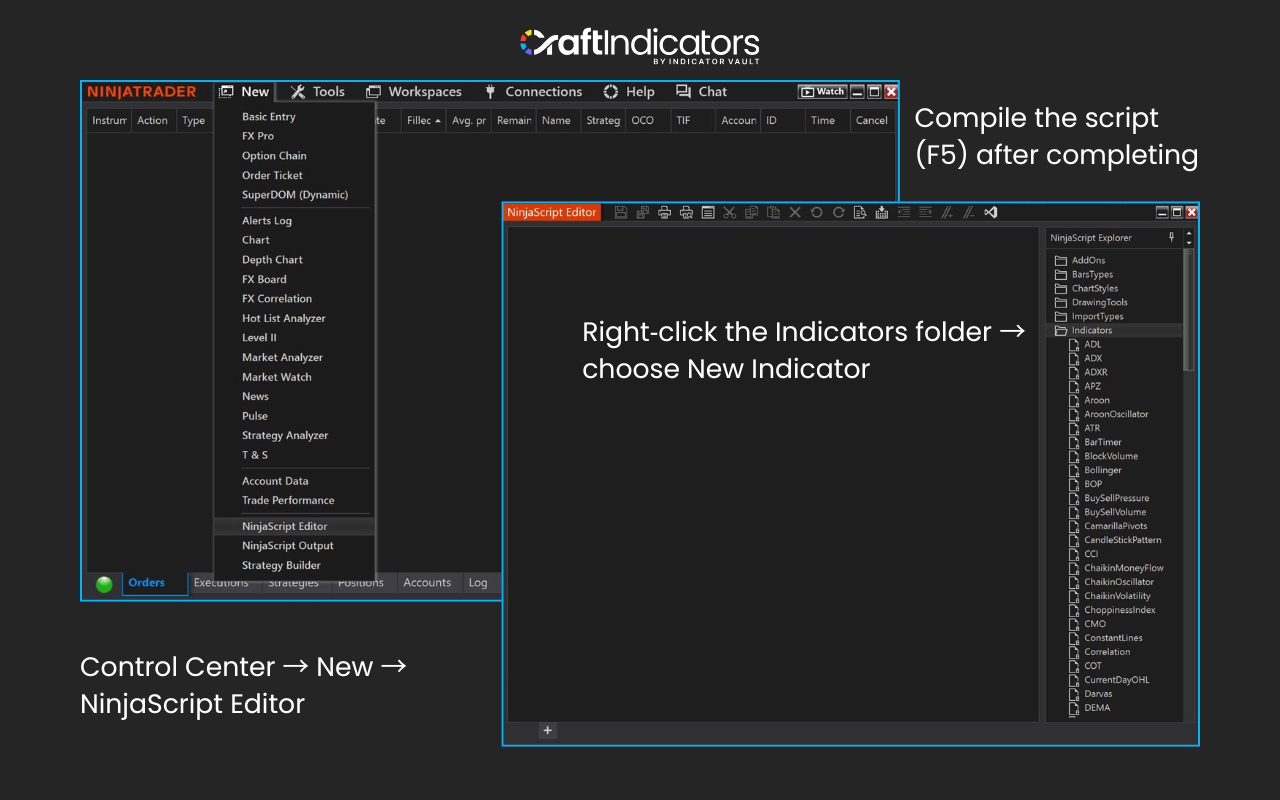 Remember to compile the script (F5) after completing to make the new indicator available for use on your charts.
How to Manage, Save, and Edit Indicator Templates
Technical traders often rely on several indicators in one chart, depending on their personal trading style. This can make charts cluttered and harder to read. Managing indicators helps keep setups simple and consistent. Saving templates allows traders to apply the same configuration across multiple charts, while editing ensures each indicator matches the strategy in use.
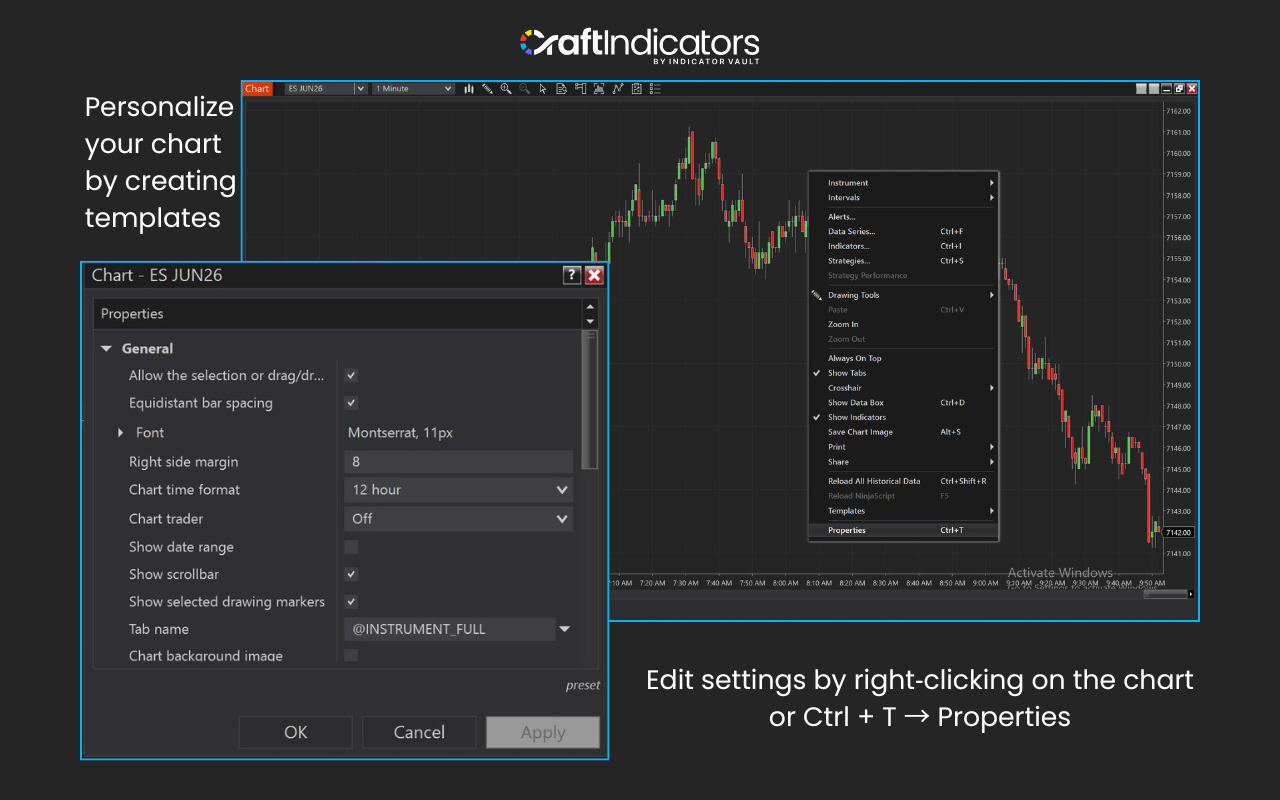
- Edit settings by right‑clicking on the chart or Ctrl + T → Properties.
- Save your setup as a template for quick reuse.
- Apply templates across multiple charts.
How to Remove or Delete Imported Indicators Safely
You can remove unwanted indicators from a chart or delete them permanently from NinjaTrader. There are three ways to remove an indicator from a chart:
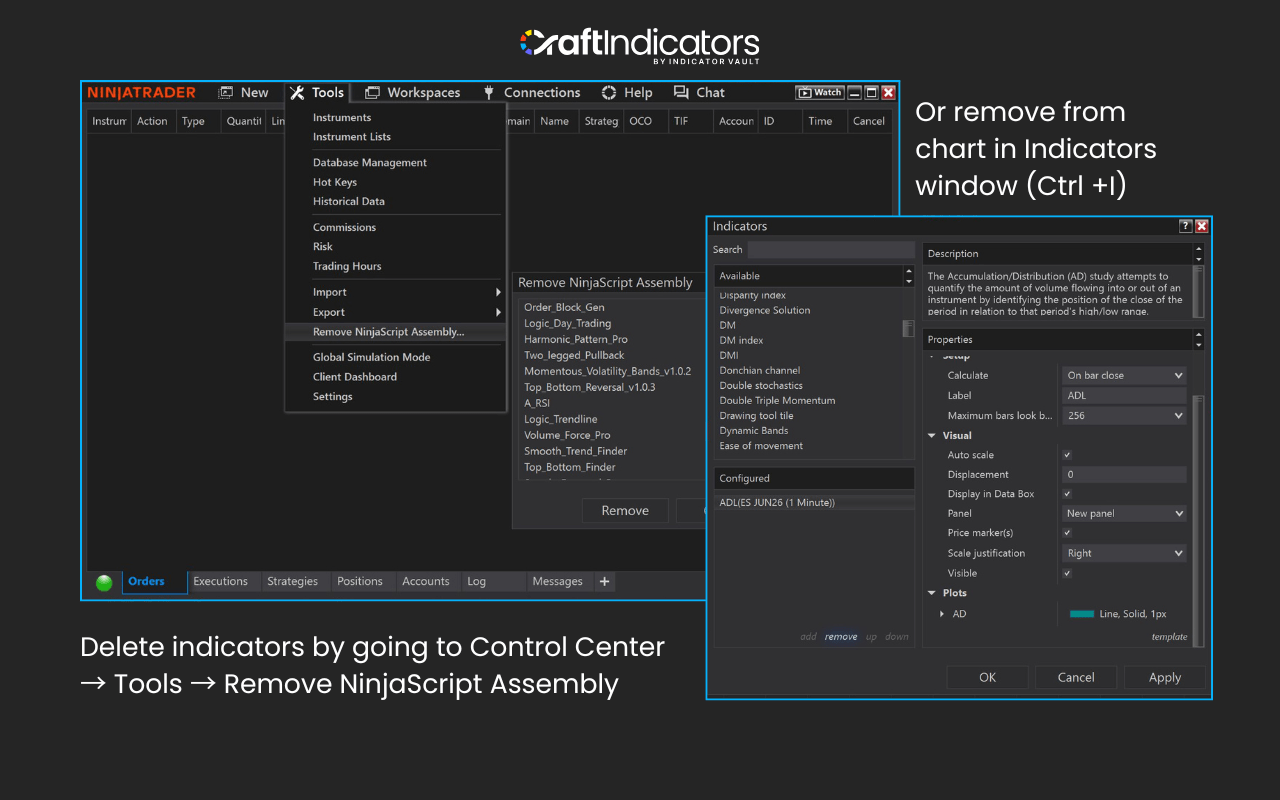
- Open the Indicators window, select the indicator from the Configured section, choose Remove, and press OK to exit.
- Left‑click the indicator on your chart, then press the Delete key on your keyboard.
- Left‑click the indicator on your chart, then right‑click and select the Remove option from the menu.
Or sometimes you may need to uninstall indicators you no longer use. To do this:
- Go to Control Center → Tools → Remove NinjaScript Assembly, select the indicator, and confirm.
- Restart NinjaTrader to finish removal.
- If deleted by mistake, re‑import the .zip file.
Where to Find Safe NinjaTrader Indicators
Finding reliable indicators is just as important as knowing how to install or manage them. Technical traders depend on quality tools that are safe, optimized, and consistent with their strategies. Here are trusted places to look:
NinjaTrader Ecosystem
The official NinjaTrader Ecosystem offers a wide range of free and paid indicators. These are community‑driven and often reviewed, making them a safe starting point for traders.
Official Vendor Websites
Many professional vendors provide indicators directly through their websites. Buying from official sources ensures compatibility, updates, and support.
Craft Indicators
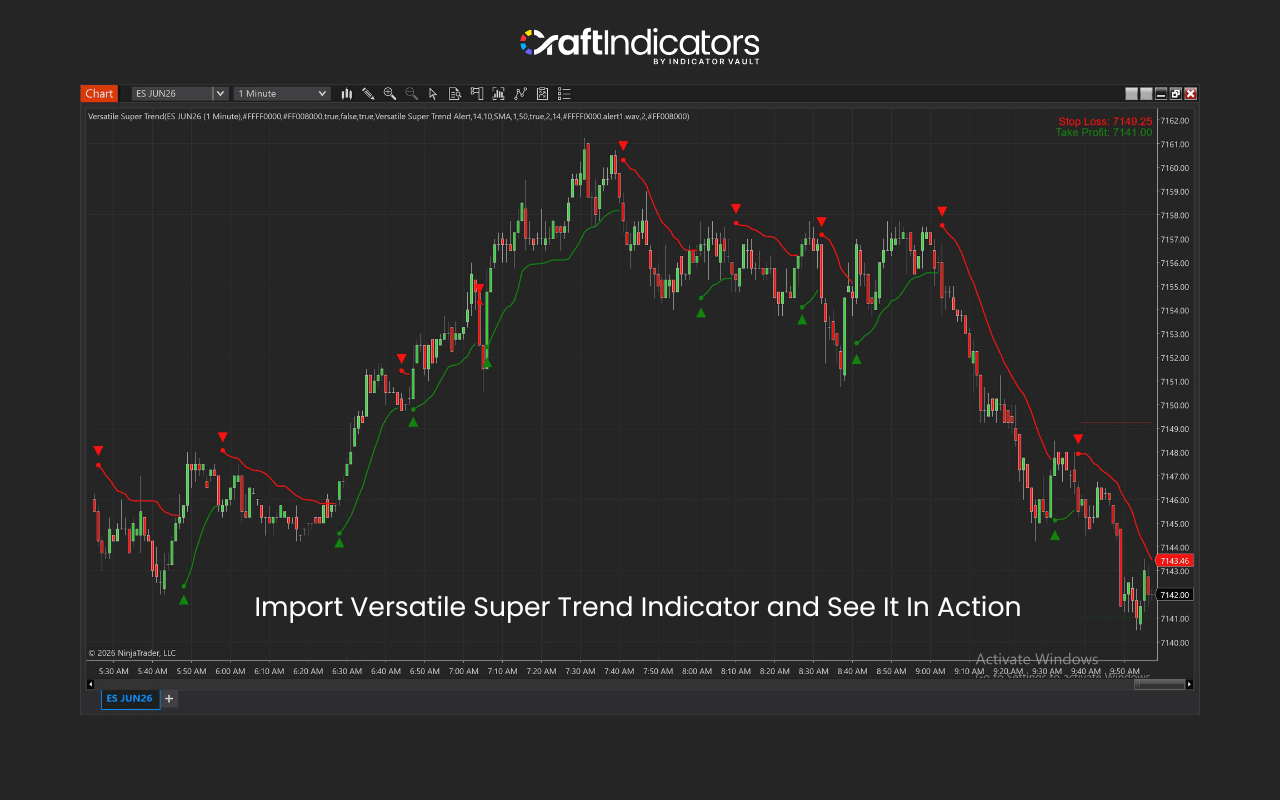
This is where Craft Indicators shines. We focus on delivering trusted, optimized, and safe indicators that meet strict quality standards. Each tool is tested for performance and reliability so traders can use them with confidence. Our free Versatile SuperTrend indicator for NinjaTrader 8 is a perfect example — designed to give clear, dependable trend signals without cluttering your charts. Download our free Versatile SuperTrend indicator and follow along
Conclusion
Managing indicators in NinjaTrader 8 helps traders keep charts clean, consistent, and aligned with their strategies. You can add built‑in tools, import custom scripts, or create your own indicators with NinjaScript. Templates make setups faster to reuse, while safe removal keeps your workspace organized. By using trusted sources like the NinjaTrader Ecosystem, official vendors, and Craft Indicators, traders can ensure they are working with reliable tools. With these steps, you can customize NinjaTrader 8 to match your style and trade with confidence.
FAQs
- How do I know if an indicator was successfully imported into NinjaTrader 8?
Check the Indicators window (Ctrl+I). If it appears in the “Available” list, it was installed.
- Can I import multiple indicators at once in NinjaTrader 8?
Yes, if they are packaged in one .zip NinjaScript Add‑On. Otherwise, import them one by one.
- Are free NinjaTrader indicators safe to import?
Free indicators can be safe if downloaded from trusted sources like the NinjaTrader Ecosystem or reputable vendors.
- What should I do if I get compile errors after importing an indicator?
Compile errors mean the script is missing references or not compatible. Open NinjaScript Editor to check errors or re‑download from a verified source.
Also, follow us for all the promotions and other useful topics:
- Facebook: www.facebook.com/craftindicators
- Instagram: www.instagram.com/craftindicators
